
This guide connects Warp Performance to Bunny.net. It shows exactly which key and which ID to use, where to find them, what Warp does once connected, and how to fix the most common problem: a connection that tests fine while Bunny does not cache your pages. The Bunny.net integration is a Pro feature.
What the integration does
- Purging. When Warp clears its cache, it clears the matching pages in your Bunny Pull Zone.
- HTML edge caching. Warp creates three Edge Rules in your Pull Zone so Bunny can cache your HTML pages at its edge, not just images, CSS and JavaScript.
This is separate from the CDN card above it in Warp, which rewrites your static file URLs to a CDN hostname. You can use either or both.
The two values you need, and the ones you must not use
| Warp field | Use this | Do not use |
|---|---|---|
| Account API Key | Your Bunny Account API Key. | A Pull Zone password, a Storage Zone password or the read-only storage token. These all fail with "Invalid Account API Key". |
| Pull Zone ID | The number of the Pull Zone that serves this website, for example 123456. | Your Bunny DNS Zone ID, the Pull Zone name, or a hostname. These fail with "Pull Zone ID not found". |
Where to find them in Bunny
- Account API Key. Sign in to Bunny and open
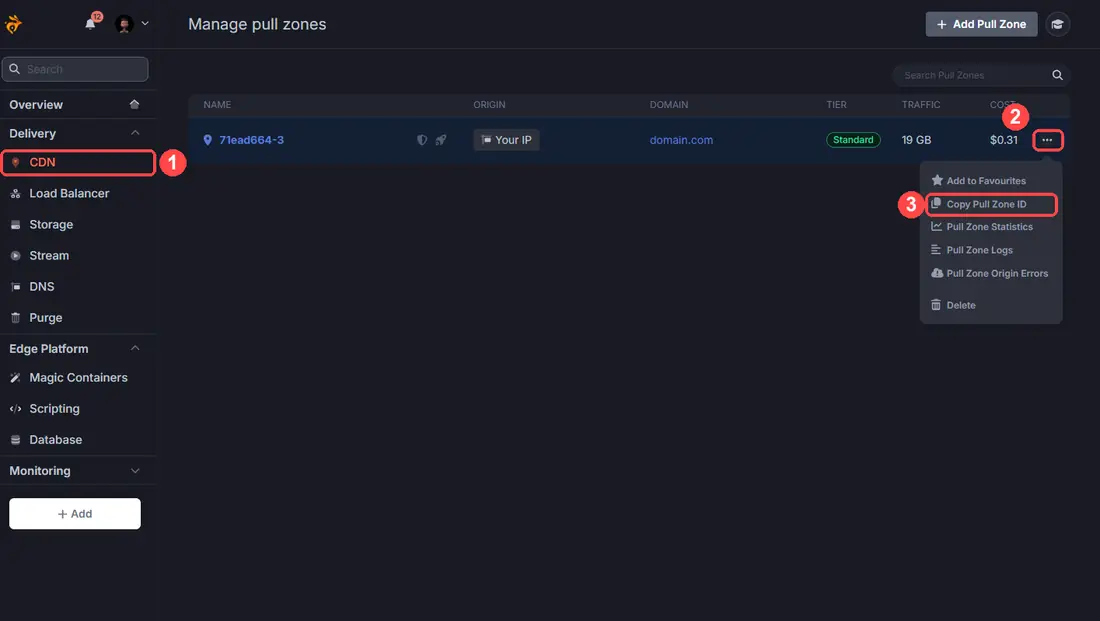
dash.bunny.net/account/api-key(or open your account menu and choose the API key page). Copy the API Key shown there. This is your account's key, so treat it like a password. - Pull Zone ID. In the Bunny dashboard, click CDN in the left menu (1). The list shows each Pull Zone with its name, Origin and Domain. Find the row whose Domain is your website, click the three dots at the end of that row (2) and choose Copy Pull Zone ID (3). Paste it straight into Warp.
Another way: click the zone's name to open it and read the number in the browser address bar, right after/cdn/. Ondash.bunny.net/cdn/123456/general/hostnamesthe Pull Zone ID is123456. The zone's name in the list (a short code such asa1b2c3d4-3) is not the ID.
Bunny's Account API Key cannot be limited to a single zone or a single action. Anyone holding it has your whole Bunny account, so never paste it into chat, email or a public repository. If it leaks, regenerate it in Bunny and paste the new one into Warp.
Before you start
- Your site's domain must already be served through the Bunny Pull Zone, and Bunny must be able to reach your WordPress site as its origin. The Origin can be your site's URL or just the server's IP address (the CDN list in Bunny shows it in the Origin column), and your domain is added to the zone as a hostname under CDN → your Pull Zone → General → Hostnames. Warp cannot check any of this for you. If visitors do not actually pass through Bunny, nothing Warp does there has any effect.
- Warp Performance Pro is active with a valid license.
Connect Bunny in Warp
- In WordPress, open Warp Performance → CDN and find the Bunny.net card.
- Turn on Enable Bunny.net Integration.
- Paste your key into Account API Key and the number into Pull Zone ID.
- Click Test. Read the result against the table below.
- Click Save. Saving is what creates the Edge Rules in Bunny.
- Click Test again. You want: Successfully connected to Pull Zone: your-zone. HTML Edge Caching rule is Active.
What the Test message means
| Message | Meaning | What to do |
|---|---|---|
| Successfully connected to Pull Zone: … HTML Edge Caching rule is Active. | Key and zone are right, and the edge rule is in place. | Nothing. |
| Successfully connected to Pull Zone: … HTML Edge Caching rule is Inactive. | Key and zone are right, but Warp's rules are missing or switched off in Bunny. Purging works. HTML edge caching does not. | Follow "Connected, but the HTML rule is Inactive" below. |
| API Key and Pull Zone ID are required. | A field is empty. | Fill in both. |
| Invalid Account API Key. Use the key found at bunny.net → Account → API… | Wrong kind of key, or a mistyped one. | Copy the Account API Key again from the API key page (dash.bunny.net/account/api-key). |
| Pull Zone ID not found on this account… | The ID is not a Pull Zone number on this account. | Use the number from dash.bunny.net/cdn/<number>. |
| Connection failed: … or Bunny API returned unexpected status | Your server cannot reach api.bunny.net, or Bunny had a temporary problem. | Check outbound HTTPS from your host, then retry. |
Note that Test never changes anything in Bunny. It only reads your Pull Zone and reports whether the rule is there. Rules are written when you save.
The three Edge Rules Warp creates
You can see them in Bunny under CDN → your Pull Zone → Edge Rules. All three names start with Warp Performance.
| Rule | What it does |
|---|---|
| Warp Performance HTML Edge Cache Target | When a response carries CDN-Cache-Control containing public, Bunny caches it at the edge for up to a year (Warp controls the real lifetime through purging). |
| Warp Performance Browser No-Store | For those same pages, tells visitors' browsers not to keep their own copy, so a purge reaches people straight away. |
| Warp Performance Edge Cache Bypass | Never caches the admin, login, cron, REST API, XML files, cart, checkout, account pages, requests from logged-in or cart-holding visitors, any bypass URLs and cookies you added in Warp, or requests asking for JSON. |
Warp deletes and rebuilds its own rules each time it syncs, and it only touches rules with these three names. Rules you create yourself are left alone.
Why a page is not cached yet
Bunny only caches a page when Warp marks it as public. Warp marks a page public once its optimization is finished, for example once its Remove Unused CSS result is ready. Until then Warp sends CDN-Cache-Control: no-store, so the first visits to a new or freshly purged page are not cached at the edge. This is intentional: it stops Bunny holding an unoptimized copy. Let Warp's preload run, or visit the page a couple of times, and it becomes cacheable.
Connected, but the HTML rule is Inactive
This is the Bunny version of a silent failure. Warp creates its rules in the background when you save, and it does not show an error on screen if Bunny refuses them. The result is a green connection with no HTML caching.
How it shows up
- Test reports HTML Edge Caching rule is Inactive even after saving.
- In Bunny, Edge Rules for the Pull Zone shows none of the three Warp rules, or shows them disabled.
- Your HTML responses show a Bunny cache status of
MISSon every load instead ofHIT(look for theCDN-Cacheorcdn-cacheresponse header in your browser's Network tab, from a private window).
How to fix it
- Check the basics first: you used the Account API Key and the numeric Pull Zone ID, and the Pull Zone really is the one serving your domain.
- In Warp, go to CDN → Bunny.net, click Test and confirm the connection succeeds.
- Make Warp rebuild the rules. Saving with nothing changed does nothing. Turn Enable Bunny.net Integration off, click Save, turn it back on and click Save again. Warp re-syncs whenever the integration is switched, the key or Pull Zone ID changes, or your bypass cookies or bypass URLs change. Pasting a fresh key also works.
- Click Test. You want HTML Edge Caching rule is Active.
- If it is still Inactive, open the Pull Zone in Bunny, go to Edge Rules, and look at the Warp rules directly. If you see them but they are disabled, someone switched them off in Bunny. If you see none, turn on Debug mode in Warp, save once more, and look in the Warp debug log for lines starting with
BUNNY. Send those lines to support.
How purging works
| Event in Warp | What happens in Bunny |
|---|---|
| You edit a post, or Warp purges specific URLs | Those exact URLs are queued and purged in batches of up to 60. URLs that have just finished preloading go first. |
| You click Purge Pages, or Warp purges the page cache | The whole Pull Zone cache is purged. |
| Purge Everything | The whole Pull Zone cache is purged. |
| Several full purges within two minutes | Only the first runs. The rest are skipped as duplicates to keep within Bunny's limits. |
| Bunny answers "too many requests" (HTTP 429) | Warp waits for the time Bunny asks for and then continues. |
| A single URL keeps failing | Dropped after five attempts and logged, instead of retrying forever. |
| Bunny rejects the key (HTTP 401 or 403) | The queue is cleared and an error is logged. Fix the key and save. |
Troubleshooting
| Problem | Likely cause | Fix |
|---|---|---|
| Edits do not show on the live site | The Pull Zone ID points to a different zone, or the key was rejected. | Run Test. Confirm the ID is the zone serving this domain. Watch for BUNNY PURGE lines in the debug log. |
| Test passes but HTML is never cached | Rules are missing or disabled in Bunny. | Follow "Connected, but the HTML rule is Inactive". |
| New page not cached at first | Normal. The page is not marked public until it is optimized. | Wait for preload, or load the page a few times. |
| Logged-in users see stale or someone else's content | A login or session cookie is not in the bypass list. | Add the cookie name under Cache bypass cookies in Warp and save. Warp rebuilds the Bunny rule. |
| Shop cart or checkout cached | A custom cart or checkout URL is not covered. | Add the path under Cache bypass URLs in Warp and save. |
| API key leaked, or you want to rotate it | Security hygiene. | Regenerate it in Bunny (the API key page (dash.bunny.net/account/api-key)), paste the new key into Warp and save. |
| You want to turn the integration off | Retiring Bunny. | Turn off Enable Bunny.net Integration and save. Warp switches its three rules off in Bunny. |
Was this page helpful?